Key takeaways
- On most Garmin watches you change the face by holding the menu button, selecting Watch Face, and choosing one.
- Customize (or Edit) changes the layout, data fields and accent colour, but not every face can be edited.
- New faces come from the Connect IQ Store app and install at your next sync with Garmin Connect.
- Garmin says a face that doesn't update every second, such as one without a second hand, saves battery.
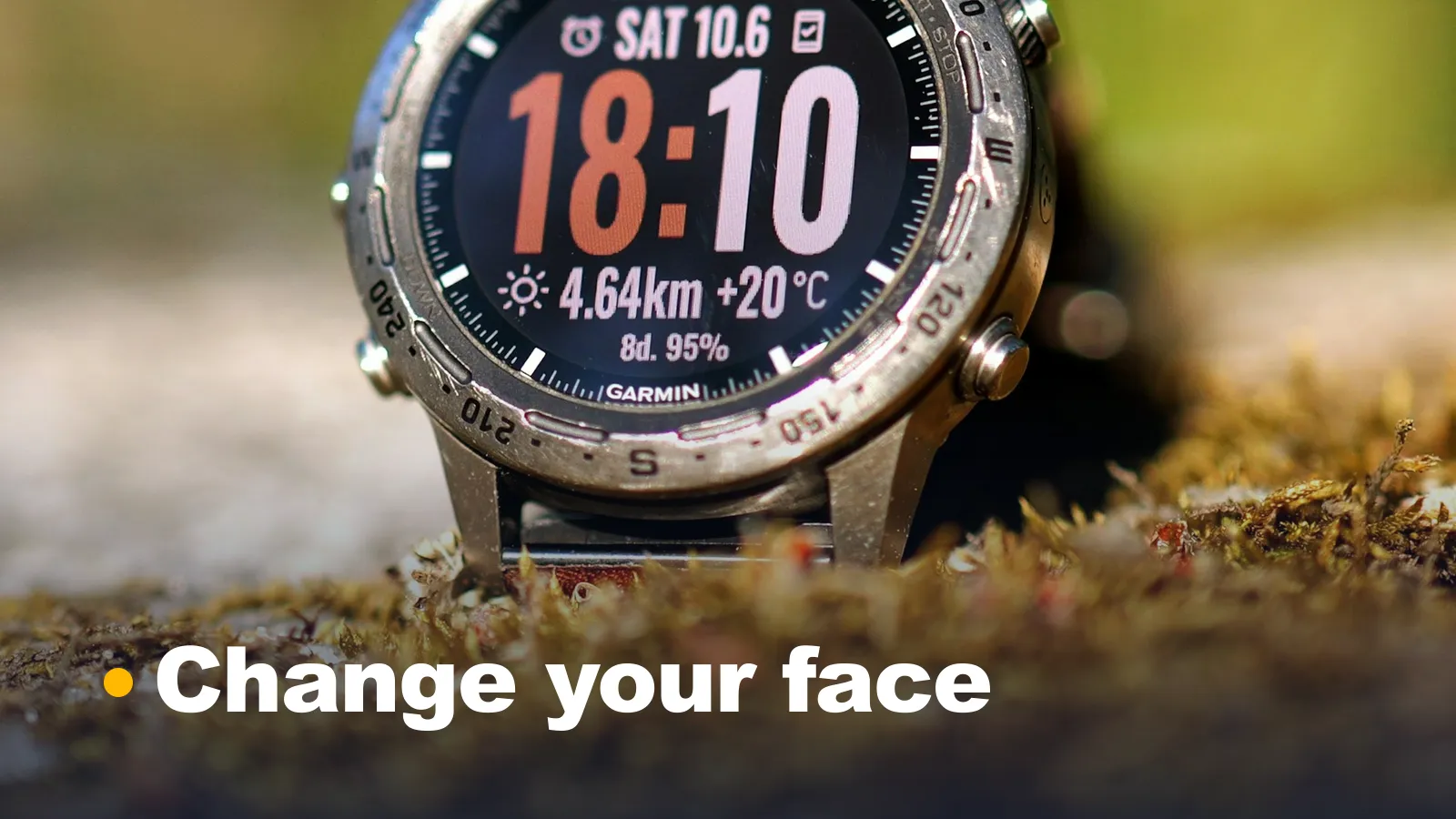
A Garmin watch face is the main screen of a Garmin watch, showing the time plus data such as steps, heart rate or battery, and you can swap or customise it from the watch itself. This guide covers how to change the face on 4 popular watch families, how to customise the data it shows, how to install new faces from the Connect IQ Store, and how faces affect battery life.
How do you change a Garmin watch face?
On most Garmin watches you hold the menu button from the watch face, select Watch Face, scroll to a face and apply it. The button differs by model, so pick yours below.
Forerunner 265 (buttons)
Garmin's Forerunner 265 manual gives 5 steps:
- From the watch face, hold UP.
- Select Watch Face.
- Press UP or DOWN to preview the faces.
- Select Add New to scroll through more pre-loaded faces.
- Select START > Apply.
fēnix 8 series
The fēnix 8 manual gives 5 steps:
- From the watch face, hold the middle-left button.
- Select Watch Face.
- Press the upper-right or lower-left button to preview faces, or select Add New for more.
- Press the button on a face and select the Edit icon.
- Select Apply.
Venu 3 and vívoactive 5 (touchscreen)
The Venu 3 and vívoactive 5 manuals give the same 4 steps:
- From the watch face, hold B, the back button.
- Select Watch Face.
- Swipe right or left through the faces.
- Tap the touchscreen to select one.
How do you customise a Garmin watch face?
You customise a face from the same Watch Face menu by selecting Customize (Forerunner) or the Edit icon (fēnix and Venu). Garmin notes that not all options are available for all faces, and some faces can't be edited.
The options differ by watch:
| Watch | Customise options |
|---|---|
| Forerunner 265 | Dial, Hands, Layout, Seconds, Data, Accent Color |
| fēnix 8 | Styles, Data, Accent Color, Data Color, Bkgd. Color, Alt. Time Zones |
| Venu 3, vívoactive 5 | Edit the type, background, dial, data fields, time markers and accent colour |
To change what a face shows, select Data, then pick a field and the data you want in it. On the Venu 3 and vívoactive 5 you can also build a new face: go to Watch Face, swipe left and tap the plus icon, then work through the options; a white border marks each data field you can change.
How do you get new Garmin watch faces?
New faces come from Garmin's Connect IQ Store, an app store for Garmin watches. Garmin gives 5 steps to install one from your phone:
- Open the Connect IQ app.
- Use Search or the main menu to find a face.
- Select Install.
- Select OK if asked for permissions.
- Sync with the Garmin Connect app or Garmin Express to send it to the watch.
Some watches, including the Forerunner 265, fēnix 8, Venu 3 and vívoactive 5, also have the store on the watch under START > Connect IQ Store. To change a Connect IQ face's settings, open the Connect IQ app and go to My Device > My Watch Faces, select the face, then Settings.
Face It is Garmin's tool for making a face from your own photo. In the Connect IQ app, select Face it, add a photo or preset background, choose a layout, name it and install it. Garmin says your photos aren't stored in its cloud, and only one Face It face can be sent to a watch at a time.
How do you delete a Garmin watch face?
You delete a built-in face on the watch: select it in the Watch Face menu, then select Delete. Garmin says most watches can recreate a deleted pre-loaded face from a template in the watch face settings.
To remove a Connect IQ face, open the Connect IQ app, go to Device > My Watch Faces, select the face, tap the three-dot icon, select Uninstall and sync. Some watches limit how many faces you can install, so deleting one frees space for a new one.
Do watch faces affect Garmin battery life?
Yes. Garmin advises using a watch face that isn't updated every second, such as one without a second hand, and turning off Always On Display to save battery.
On the Forerunner 165, Garmin says faces other than the default may reduce battery life, and rates the watch at up to 11 days with default display settings against up to 4 days with the display always on. Our Garmin Forerunner 265 review covers its battery in daily use, and our guide to smart rings explains screenless trackers that last 5 to 10 days per charge.
Common questions
How do I change what is shown on my Garmin watch face?
Open the watch face menu, select Customize or the Edit icon, then select Data and pick a field to change. The data you can show depends on your watch and the face.
How do I change the face on a fenix 8?
From the watch face, hold the middle-left button, select Watch Face, and press the upper-right or lower-left button to preview faces. Press the button on the one you want and select Apply.
Why did my Garmin watch face change by itself?
Garmin says Battery Saver or sleep mode is the likely cause. Both can switch to a simpler face, and you can't customise features Battery Saver has turned off while it's on.
How many watch faces can a Garmin hold?
There's no fixed number: the limit depends on the watch. If you don't see Add or Add New, Garmin says to delete an existing face and try again.
Writes guides and reviews for ProductHunter.